myqt08.py
import sys
from PyQt5 import uic
from PyQt5.QtWidgets import QApplication, QMainWindow, QMessageBox
from random import random
from _functools import partial


form_class = uic.loadUiType("myqt08.ui")[0]


class WindowClass(QMainWindow, form_class):

    def __init__(self):
        super().__init__()
        self.setupUi(self)
        com1 = self.getCom();
        self.pb.clicked.connect(partial(self.btnClick,com1))

    def btnClick(self, com1):
        print(com1)
        mine = self.le.text()
        strike = self.getStrike(com1, mine)
        ball = self.getBall(com1, mine)
        old = self.te.toPlainText()
        res =""
        if strike == 3:
            res = mine + "\t정답입니다.\n"
            QMessageBox.about(self,'정답',res)
        else:
            res = mine+"\t"+str(strike)+"S"+str(ball)+"B\n"

        self.te.setText(res+old)
        self.le.setText("")


    def getBall(self,com,mine):
        ret = 0
        c1 = com[0]
        c2 = com[1]
        c3 = com[2]

        m1 = mine[0]
        m2 = mine[1]
        m3 = mine[2]

        if c1 == m2 or c1 == m3:
            ret += 1
        if c2 == m1 or c2 == m3:
            ret += 1
        if c3 == m1 or c3 == m2:
            ret += 1

        return ret


    def getStrike(self,com,mine):
        ret = 0
        c1 = com[0]
        c2 = com[1]
        c3 = com[2]

        m1 = mine[0]
        m2 = mine[1]
        m3 = mine[2]

        if c1 == m1:
            ret += 1
        if c2 == m2:
            ret += 1
        if c3 == m3:
            ret += 1
        return ret

    def getCom(self):
        #1부터 9까지 배열 만들기
        arr = [];
        for i in range(1,9+1):
            arr.append(i)

        #배열 섞기
        for i in range(1,100+1):
            rnd = int(random()*9)
            a = arr[0]
            arr[0] = arr[rnd]
            arr[rnd] = a

        #com 숫자 만들기
        com = str(arr[0])+str(arr[1])+str(arr[2])
        return com


if __name__ == "__main__":
    app = QApplication(sys.argv)
    myWindow = WindowClass()
    myWindow.show()
    app.exec_()
particial()을 이용해 getCom() 메서드를 이용해 com 객체를 받아 btnClick 메서드에 com 객체를 파라미터로 주는 방법으로 작성한 코드다.
이 방법 말고도 self.com이라는 인스턴스를 만들어 btnClick 메서드 안에서 값을 사용하는 방법도 있다.
import sys
from PyQt5 import uic
from PyQt5.QtWidgets import QApplication, QMainWindow, QMessageBox
from random import random
from _functools import partial


form_class = uic.loadUiType("myqt08.ui")[0]


class WindowClass(QMainWindow, form_class):

    def __init__(self):
        super().__init__()
        self.setupUi(self)
        com1 = self.getCom();
        self.pb.clicked.connect(self.btnClick)
        # 추가적인 인자를 인스턴스 변수로 저장
        self.com1 = com1

    def btnClick(self):
        com1 = self.com1
        print(com1)
        mine = self.le.text()
        strike = self.getStrike(com1, mine)
        ball = self.getBall(com1, mine)
        old = self.te.toPlainText()
        res =""
        if strike == 3:
            res = mine + "\t정답입니다.\n"
            QMessageBox.about(self,'정답',res)
        else:
            res = mine+"\t"+str(strike)+"S"+str(ball)+"B\n"

        self.te.setText(res+old)
        self.le.setText("")


    def getBall(self,com,mine):
        ret = 0
        c1 = com[0]
        c2 = com[1]
        c3 = com[2]

        m1 = mine[0]
        m2 = mine[1]
        m3 = mine[2]

        if c1 == m2 or c1 == m3:
            ret += 1
        if c2 == m1 or c2 == m3:
            ret += 1
        if c3 == m1 or c3 == m2:
            ret += 1

        return ret


    def getStrike(self,com,mine):
        ret = 0
        c1 = com[0]
        c2 = com[1]
        c3 = com[2]

        m1 = mine[0]
        m2 = mine[1]
        m3 = mine[2]

        if c1 == m1:
            ret += 1
        if c2 == m2:
            ret += 1
        if c3 == m3:
            ret += 1
        return ret

    def getCom(self):
        #1부터 9까지 배열 만들기
        arr = [];
        for i in range(1,9+1):
            arr.append(i)

        #배열 섞기
        for i in range(1,100+1):
            rnd = int(random()*9)
            a = arr[0]
            arr[0] = arr[rnd]
            arr[rnd] = a

        #com 숫자 만들기
        com = str(arr[0])+str(arr[1])+str(arr[2])
        return com


if __name__ == "__main__":
    app = QApplication(sys.argv)
    myWindow = WindowClass()
    myWindow.show()
    app.exec_()
myqt08.ui
<?xml version="1.0" encoding="UTF-8"?>
<ui version="4.0">
 <class>MainWindow</class>
 <widget class="QMainWindow" name="MainWindow">
  <property name="geometry">
   <rect>
    <x>0</x>
    <y>0</y>
    <width>800</width>
    <height>600</height>
   </rect>
  </property>
  <property name="windowTitle">
   <string>MainWindow</string>
  </property>
  <widget class="QWidget" name="centralwidget">
   <widget class="QLabel" name="lbl">
    <property name="geometry">
     <rect>
      <x>100</x>
      <y>60</y>
      <width>61</width>
      <height>51</height>
     </rect>
    </property>
    <property name="text">
     <string>스트라이크</string>
    </property>
   </widget>
   <widget class="QLineEdit" name="le">
    <property name="geometry">
     <rect>
      <x>170</x>
      <y>70</y>
      <width>113</width>
      <height>31</height>
     </rect>
    </property>
   </widget>
   <widget class="QPushButton" name="pb">
    <property name="geometry">
     <rect>
      <x>100</x>
      <y>110</y>
      <width>181</width>
      <height>31</height>
     </rect>
    </property>
    <property name="text">
     <string>게임하기</string>
    </property>
   </widget>
   <widget class="QTextEdit" name="te">
    <property name="geometry">
     <rect>
      <x>100</x>
      <y>150</y>
      <width>181</width>
      <height>211</height>
     </rect>
    </property>
   </widget>
  </widget>
  <widget class="QMenuBar" name="menubar">
   <property name="geometry">
    <rect>
     <x>0</x>
     <y>0</y>
     <width>800</width>
     <height>21</height>
    </rect>
   </property>
  </widget>
  <widget class="QStatusBar" name="statusbar"/>
 </widget>
 <resources/>
 <connections/>
</ui>
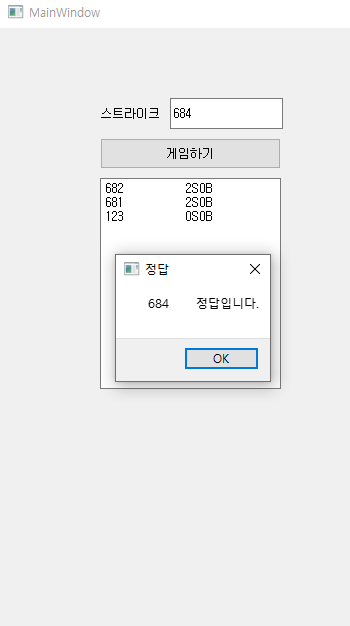
추가적으로,
게임하기 pushButton을 누르지 않고 lineText에 값 입력 후 엔터를 치면 pushButton을 눌렀을 때의 메서드를 실행하려면
self.le.returnPressed.connect(self.btnClick) 이 코드를 추가해주면 된다.
'Python' 카테고리의 다른 글
| [MariaDB] MariaDB, HeidiSQL 이용해 python과 연결하기 (0) | 2023.07.03 |
|---|---|
| [QT] 오목 게임 (0) | 2023.07.03 |
| [QT] 별찍기 (0) | 2023.06.29 |
| [QT] 가위바위보 게임 (0) | 2023.06.29 |
| [QT] 전화기 만들기 (0) | 2023.06.28 |


